Wi‑Fi 7 Upgrade Value
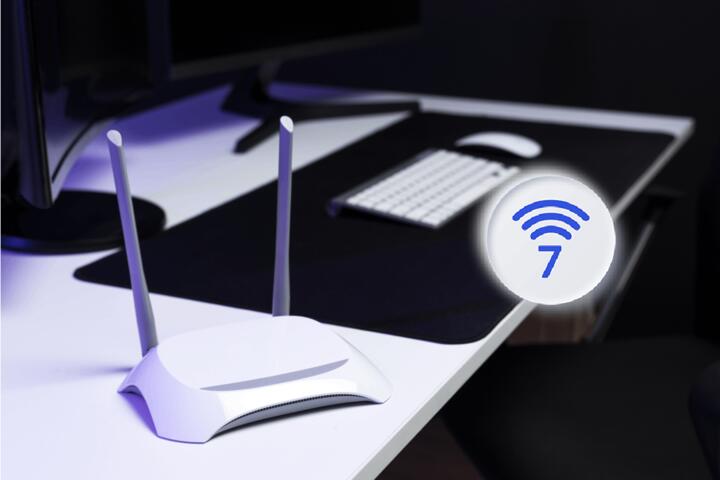
Wi‑Fi 7 can improve performance, but the upgrade payoff depends on what your current Wi‑Fi 6 setup already does well and what your devices can actually use. Many homes see the biggest gains from fixing coverage gaps, reducing congestion, and tuning channel behavior rather than chasing peak headline rates. If your Wi‑Fi 6 router is stable and your clients connect reliably, Wi‑Fi 7 often changes the ceiling more than the day-to-day experience.
Wi‑Fi 7 adds new capabilities such as 320 MHz channel support, more efficient multi-user scheduling, and features designed to reduce latency under load. Those benefits show up most when multiple devices stream or game at the same time, when the network is busy, or when you need consistent performance across several rooms. If your usage is mostly single-device browsing in a quiet environment, the difference can be subtle.
One practical example: a household with a Wi‑Fi 6 router in the center of a small apartment may already deliver stable video calls and streaming. Upgrading to Wi‑Fi 7 might not change call quality if the bottleneck is the internet connection or if the client devices still negotiate older modes. In contrast, a crowded multi-tenant building with many neighboring networks can benefit from better handling of contention, even when average speeds look similar.
Common Upgrade Pain Points
People often assume Wi‑Fi 7 automatically makes every device faster. In reality, a Wi‑Fi 7 router only helps a Wi‑Fi 7-capable client; older clients still use Wi‑Fi 6 or earlier modes, and the router must manage mixed traffic. That mixed-mode behavior can reduce the gains you expect, especially if your client list is mostly Wi‑Fi 5/6 phones and laptops.
Another frequent misunderstanding involves channel width. Wi‑Fi 7 supports 320 MHz channels, but using them depends on spectrum availability and regulatory constraints in your country. In dense areas, the router may fall back to narrower channels because wide channels suffer more from interference. You can see this in router status pages that report negotiated channel width; if you rarely see 160 MHz, 320 MHz may never be used.
Latency improvements also depend on load and traffic type. Some Wi‑Fi 7 features target more predictable scheduling when many clients transmit at once. If your network is lightly used, latency differences may be smaller than marketing suggests. If your network is heavily loaded, the improvement can show up as fewer stalls during simultaneous uploads, downloads, and gaming sessions.
Supporting technologies matter too. Wired backhaul between access points, powerline adapters, and mesh node placement can dominate real-world performance. A Wi‑Fi 7 upgrade cannot fix a weak backhaul link; it can even make the mismatch more obvious because the wireless side becomes faster than the path to the internet.
As a side observation, I’ve seen router firmware versions (for example, 1.0.x builds released around mid-year) change how often devices roam between bands in mesh systems. That roaming behavior can affect perceived speed more than the Wi‑Fi generation itself, and it rarely matches the “one number” people expect from speed tests.
What To Do Before Buying
Check Client Compatibility First
Start by listing the devices that will use the upgrade. Look for Wi‑Fi 7 support in device specifications, not just in the router box. Many laptops and phones support Wi‑Fi 6E or Wi‑Fi 6, while Wi‑Fi 7 support may be limited to newer models. If only one or two devices are Wi‑Fi 7, the upgrade can still help those devices, but the overall household experience may change less than expected.
Also check whether your current clients already connect on 5 GHz or 6 GHz (if you have Wi‑Fi 6E). If your devices mostly connect on 2.4 GHz due to distance or band-steering settings, Wi‑Fi 7 won’t fix the physics. You’ll likely need better placement, more access points, or adjusted steering thresholds so clients stay on higher-capacity bands.
Measure Real Bottlenecks
Run tests that separate internet speed from local Wi‑Fi performance. Use one device connected directly to the router (or the closest mesh node) and test with a wired connection to the same router if possible. If your internet link caps at, say, 300 Mbps, a Wi‑Fi upgrade won’t raise that ceiling. For local tests, tools like iperf3 (common in networking communities) can show whether the wireless link is the limiting factor.
Repeat tests at different times. Congestion patterns can shift throughout the day, and a single “good” speed test can hide a recurring problem. If you see high packet loss or unstable throughput during peak hours, Wi‑Fi 7’s scheduling improvements may help, but only if your clients can use the newer modes.
When you check router status, note the negotiated channel width and modulation mode. If the router reports frequent fallback to narrower channels, wide-channel features may not translate into higher throughput in your environment.
Plan Coverage and Backhaul
If you use a mesh system, verify that the mesh backhaul is wired or at least not forced through a weak wireless hop. A common failure mode is a mesh node placed for coverage but connected through a low-quality backhaul link, which then limits every device behind it. In that case, upgrading the main router to Wi‑Fi 7 may not improve the far rooms.
Repositioning can be a cheaper first step than buying new hardware. Move the access point away from thick walls and metal objects, and avoid placing it inside cabinets. Even a small change in placement can shift signal quality enough to keep clients on higher data rates.
If you have multiple floors, consider whether you need an additional access point rather than a single stronger router. Wi‑Fi generations improve throughput per link, but they don’t replace coverage planning.
Use Firmware and Settings Wisely
Before spending money, update router firmware and document the settings you change. Some features like band steering, channel selection, and transmit power can affect stability and roaming. If you change too many variables at once, you won’t know which change helped or hurt.
For mixed networks, confirm that your router supports the coexistence behavior you need. For example, if you run both 2.4 GHz and 5 GHz, check whether the router is steering clients in a way that avoids constant reconnects. That kind of instability can feel like “slow Wi‑Fi” even when raw throughput is fine.
One mild frustration: many router apps hide advanced settings behind “auto” toggles, and the default behavior may not match your home layout. If you can access the underlying web interface, you can often inspect channel utilization and roaming logs more directly.
Case Examples From Real Homes
Scenario A: Apartment with stable Wi‑Fi 6 — A two-bedroom apartment uses a Wi‑Fi 6 router placed near the center. A family streams video on multiple TVs and uses video calls on phones and laptops. Speed tests show consistent performance, and the router status indicates clients mostly connect on 5 GHz with stable signal. Upgrading to Wi‑Fi 7 changes negotiated capabilities on the newest laptop, but the TVs and phones remain on Wi‑Fi 6 modes. The main improvement is slightly smoother performance during simultaneous uploads, while average streaming quality stays similar because the internet connection is the limiting factor.
Scenario B: Dense building with roaming issues — A small office in a multi-tenant building has a mesh system. Employees report that gaming sessions stutter when moving between rooms. Router logs show frequent roaming events and the far node’s backhaul signal is weak. Upgrading to Wi‑Fi 7 at the main router does not fix the stutter because the bottleneck is the wireless backhaul and roaming behavior. After relocating the mesh node and adjusting steering settings, the stutter decreases, and Wi‑Fi 7 helps only the newer devices that can negotiate the newer modes.
Upgrade Checklist And Tradeoffs
| Decision Area | Wi‑Fi 7 Helps Most When | Wi‑Fi 7 Helps Less When | What To Check |
|---|---|---|---|
| Client support | Many active devices can negotiate Wi‑Fi 7 | Most devices stay on Wi‑Fi 6/5 modes | Device specs and router “connected mode” |
| Channel width | Wide channels are available and used | Router frequently falls back due to interference | Negotiated 160/320 MHz status |
| Congestion | Many devices transmit at once | Light usage with few simultaneous streams | Time-of-day test results |
| Backhaul | Mesh nodes have strong wired or high-quality backhaul | Wireless backhaul hop is weak | Mesh link quality and placement |
| Internet cap | Internet speed exceeds Wi‑Fi capability | Internet speed limits performance | Compare wired vs Wi‑Fi throughput |
Step-by-step checklist you can follow in one evening:
- Write down your current router model and firmware version (for example, note the exact build shown in settings).
- List your active devices and mark which ones support Wi‑Fi 7.
- Run one wired test to the router and one Wi‑Fi test from the same device; compare results.
- Check router status for negotiated channel width and band (2.4/5/6 GHz).
- Test at peak usage time and record whether latency spikes or throughput drops.
- If you use mesh, check whether the backhaul is wired; if wireless, measure link quality and consider moving nodes.
- Only then compare the cost of Wi‑Fi 7 hardware against cheaper fixes like placement, additional access points, or replacing a weak backhaul link.
Common Mistakes To Avoid
Buying a Wi‑Fi 7 router without checking client support leads to disappointment. A router upgrade changes the access point side, but client negotiation determines what features get used. If your devices cannot join Wi‑Fi 7, you may only gain marginal improvements from better radio management.
Another mistake is relying on a single speed test run. Speed tests often measure throughput under ideal conditions and can miss packet loss, retransmissions, and latency spikes that affect gaming, video calls, and remote work. Run tests multiple times and watch for consistency, not just peak numbers.
People also underestimate interference and channel planning. In crowded neighborhoods, wide channels can be unavailable even with Wi‑Fi 7 support. If your router reports frequent channel changes or narrow negotiated widths, the upgrade may not deliver the expected throughput.
Mesh users sometimes place nodes for coverage rather than backhaul quality. A node that “lights up” the far room can still starve the network if the backhaul link is weak. That mismatch produces slowdowns that look like Wi‑Fi problems but originate in the mesh topology.
Finally, some buyers ignore firmware maturity. Early firmware can change roaming behavior, band steering, and channel selection. If you upgrade, plan a short evaluation window and keep notes so you can revert settings if stability drops.
FAQ
Will Wi‑Fi 7 make my phone faster?
Only if your phone supports Wi‑Fi 7 and negotiates Wi‑Fi 7 modes with the router. If the phone connects on Wi‑Fi 6, the speed gains depend on how much your current Wi‑Fi 6 setup is limited by congestion, coverage, or interference.
Does Wi‑Fi 7 improve gaming latency?
It can reduce latency under load through more efficient scheduling, but latency also depends on internet routing, bufferbloat, and Wi‑Fi signal quality. If your Wi‑Fi signal is weak or your mesh backhaul is poor, latency may worsen despite Wi‑Fi 7.
Do I need 320 MHz channels for benefits?
Not always. Wi‑Fi 7 includes improvements that can help even with narrower channels, but the largest throughput gains require enough spectrum availability and a client/router combination that can use wider channels.
Is a Wi‑Fi 7 router enough without new devices?
For older clients, the router still must support mixed-mode operation, so those clients will use their supported Wi‑Fi generation. The upgrade can still help by improving overall radio management, but the biggest gains show up on Wi‑Fi 7-capable devices.
Should I upgrade my mesh system too?
If your mesh backhaul is the bottleneck, upgrading only the main router often changes little in far rooms. If your mesh nodes support Wi‑Fi 7 and have strong backhaul links, the upgrade can improve consistency across rooms.
Author's Insight
Wi‑Fi 7’s practical value comes from how it handles crowded transmissions, wider channels when available, and scheduling efficiency. Those benefits depend on client capability, negotiated channel width, and whether your mesh backhaul and placement are already sound. A careful evaluation compares wired vs Wi‑Fi throughput, checks negotiated modes in router status, and tests at peak times. If your current Wi‑Fi 6 network is stable and your devices mostly connect on higher-capacity bands, the upgrade often shifts peak performance more than everyday reliability.
Key Takeaways
- Wi‑Fi 7 helps most when Wi‑Fi 7-capable clients are common and your network is congested or interference-heavy.
- Internet speed caps, weak mesh backhaul, and poor placement can dominate performance regardless of Wi‑Fi generation.
- Use router status to confirm negotiated modes and channel width, then test wired vs Wi‑Fi and repeat during peak usage.
- Upgrade only after you’ve ruled out cheaper fixes like better access point placement, additional wired backhaul, or replacing a weak mesh link.