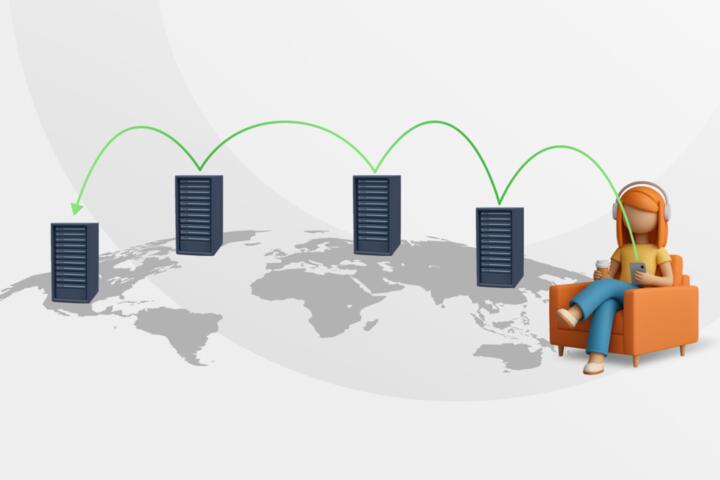
DNS And IP Address Mapping
DNS (Domain Name System) translates a human-friendly domain like example.com into network addresses such as IPv4 (A records) or IPv6 (AAAA records). Browsers and many apps do not connect to a domain string directly; they connect to an IP address and a port. DNS sits in the middle so the same domain can keep working even when the server’s IP changes.
A practical example: you type clearlyhow.com into a browser, the browser asks a DNS resolver for the address, and the resolver returns an IP. The browser then opens a TCP or QUIC connection to that IP. If the DNS answer is cached, the lookup can finish in tens of milliseconds; if not, it may take longer because multiple DNS servers may be queried.
DNS also supports aliases and routing choices. A CNAME record can point one name to another, and the final answer still needs to resolve to A or AAAA records. When both IPv4 and IPv6 exist, clients may try one family first based on local settings and network behavior, which can change what you observe during troubleshooting.
Common DNS Pain Points
People often treat DNS as a single lookup, but it is usually a chain of queries across multiple servers. A domain’s authoritative DNS servers publish records, while a resolver (often run by your ISP, a public provider, or your router) performs iterative or recursive lookups. If you test with a tool on one network and then test on another, you may see different results because different resolvers and caches are involved.
Another frequent misunderstanding is mixing up record types. An A record returns an IPv4 address; an AAAA record returns an IPv6 address; a CNAME creates an alias; and an MX record is for mail routing rather than web browsing. If a domain has a CNAME at the name you query, the resolver may follow it, but some misconfigurations can create loops or dead ends that look like “the domain does not exist” even when it does.
DNS caching adds another layer of confusion. Resolvers cache answers for the time-to-live (TTL) value set by the authoritative zone. That means a change you make in DNS can take effect quickly for some users and slowly for others. I once watched a TTL of 300 seconds linger in a corporate resolver, and the “new” IP appeared only after the cache expired—annoying, but consistent with how DNS works.
Finally, DNS failures can be caused by more than missing records. Firewalls can block UDP or TCP port 53, captive portals can intercept DNS, and DNSSEC validation can reject answers when signatures do not match. A resolver may also fall back to cached data when upstream queries fail, which can mask the root cause until the cache expires.
How DNS Lookups Work
Most client software uses a resolver to reduce latency and avoid contacting the full DNS hierarchy directly. The typical flow is: your device asks the resolver for a record for a name, the resolver checks its cache, and if it lacks a valid cached answer it queries upstream servers until it finds authoritative data. The resolver then returns the result to the client and stores it according to TTL.
For a web request, the client usually queries for A and/or AAAA records for the hostname. If the hostname is a subdomain, the resolver still follows the delegation chain from the root zone down through TLDs (like .com) to the authoritative nameservers for the domain. If the zone uses CNAMEs, the resolver follows them until it reaches the final address records. This is why a DNS answer can look “indirect” even though the client ultimately needs an IP address.
Some environments add extra steps. For example, browsers may use HTTPS records (SVCB/HTTPS) in newer deployments to discover connection parameters, but the basic requirement remains: the system must still map the hostname to IP addresses. In practice, the DNS part you can observe with dig or nslookup focuses on A/AAAA and CNAME behavior.
Solutions And Practical Advice
Verify Records With dig
Use dig to inspect what DNS returns from a specific resolver. Example: dig clearlyhow.com A +noall +answer. If you also need IPv6, run dig clearlyhow.com AAAA +noall +answer. If you suspect aliasing, run dig www.clearlyhow.com CNAME +noall +answer and then check the target name’s A/AAAA records. On my workstation, dig 9.18.24 (BIND tools) prints TTL and record sections in a way that makes it easier to spot whether you’re seeing a cached answer versus an authoritative one.
If dig shows no A/AAAA records but does show a CNAME, the browser will still need the CNAME target to resolve to an address. If the CNAME target is missing or points to another alias that never reaches A/AAAA, you get resolution failures that look like “server not found.”
Test Using nslookup And Resolver Choice
nslookup can query a chosen DNS server, which helps separate “DNS record problem” from “resolver cache problem.” For example: nslookup -type=A clearlyhow.com 1.1.1.1. If the answer differs between your default resolver and a public resolver, the discrepancy usually comes from caching, split-horizon DNS, or network interception. Split-horizon setups can return different answers for internal versus external clients, which is common in enterprise networks.
When you change DNS records, watch TTL values. A short TTL (like 60 seconds) tends to propagate faster, while a long TTL (like 3600 seconds) can delay visible changes. If you see old IPs after updating, the records may be correct but cached somewhere along the path.
Check DNSSEC And Transport Blocking
If your resolver validates DNSSEC, a signature mismatch can cause failures even when the records appear correct. dig can show DNSSEC-related flags when you query with appropriate options, but interpreting them requires care. Also test whether DNS queries are blocked: some networks restrict UDP 53 and rely on TCP fallback, which can change behavior for large responses.
For troubleshooting, try both UDP and TCP modes in dig if your tool supports it. If TCP queries succeed but UDP fails, the issue is likely transport filtering rather than record content. This pattern shows up in some restrictive Wi‑Fi environments where DNS traffic is treated differently than normal web traffic.
Use Browser Network Logs Carefully
Browser developer tools can show timing for “DNS lookup” and “connecting,” but the exact breakdown depends on the browser and OS resolver behavior. A slow DNS lookup often correlates with resolver latency, not with the authoritative server being slow. If you see repeated DNS lookups for the same hostname, check whether caching is disabled or whether the browser is using a different hostname each time (for example, due to redirects).
When you reproduce an issue, test with a clean browser profile and a consistent network. That reduces noise from extensions that override DNS settings or from cached entries that hide the problem.
Case Examples For Learning
Scenario 1: A small site changes its hosting provider and updates A records, but some users still reach the old server for hours. dig from a public resolver shows the new A record immediately, while the ISP resolver still returns the old IP. The authoritative records are correct; the delay comes from cached answers with a TTL that was set long before the change. The fix is not another DNS edit; it is waiting for TTL expiry or lowering TTL before the next migration.
Scenario 2: A domain uses a CNAME for www, but the CNAME target was renamed during a reorganization. dig www.clearlyhow.com CNAME returns a target name, yet dig on the target shows no A/AAAA records. Browsers fail to load the site, even though the zone file looks partially configured. The resolution is to restore the target’s address records or adjust the CNAME to point to a name that has valid A/AAAA records.
DNS Checklist And Tradeoffs
| Check | What You Look For | Likely Cause If Wrong | Next Step |
|---|---|---|---|
| A/AAAA Records | Correct IPs returned for the hostname | Missing records, wrong zone, or stale cache | Query multiple resolvers and compare TTL |
| CNAME Chains | CNAME targets resolve to A/AAAA | Broken alias target or loop | Inspect each hop with dig |
| Resolver Consistency | Same answer across resolvers | Split-horizon DNS or caching differences | Test with a public resolver and your ISP |
| DNSSEC/Transport | Answers validate and queries succeed | Signature mismatch or blocked UDP/TCP | Check DNSSEC flags and try TCP fallback |
Step-by-step checklist: (1) Query A and AAAA for the exact hostname you type in the browser. (2) If a CNAME appears, query the CNAME target’s A/AAAA. (3) Compare results from at least two resolvers. (4) Note TTL values and wait for propagation when only caching explains the mismatch. (5) If both resolvers fail, inspect DNSSEC and transport behavior.
Common Mistakes To Avoid
One mistake is editing DNS records without confirming the hostname you actually use. A record for the root domain does not automatically cover a subdomain, and a CNAME for www does not fix the apex domain. Another mistake is assuming that “it resolves on my phone” means the public DNS is correct; mobile networks often use different resolvers and different caching behavior.
People also misread error messages. “NXDOMAIN” means the name does not exist in DNS, while “SERVFAIL” often points to resolver or upstream issues. “No route to host” or TLS errors can happen after DNS succeeds, so DNS tools should be used to confirm the IP mapping before changing web server settings.
A final common issue is ignoring TTL during migrations. If you raise TTL to 3600 seconds and then change records, you create a long window where some users see old data. If you lower TTL too late, the old cache still lingers, which feels like the DNS update failed even when it did not.
FAQ
What Records Map Domains To IPs?
A records map hostnames to IPv4 addresses, AAAA records map to IPv6 addresses, and CNAME records create aliases that still require A/AAAA at the end of the chain.
Why Do DNS Changes Take Time?
Resolvers cache answers based on TTL, so users may keep receiving older IPs until cached entries expire or until their resolver refreshes.
What Does NXDOMAIN Mean?
NXDOMAIN indicates the queried name does not exist in DNS from the resolver’s perspective, which can happen due to missing records or a wrong hostname.
How Do I Check DNS From My Network?
Use dig or nslookup to query A/AAAA and CNAME records, and compare results from your default resolver and a public resolver to spot caching or split-horizon behavior.
Can DNSSEC Break Website Access?
Yes. If DNSSEC validation fails, a resolver may reject the answer even when the underlying records look correct, leading to resolution errors.
Author's Insight
DNS-to-IP mapping is a chain of responsibilities: authoritative servers publish records, resolvers cache and query, and clients consume the final A/AAAA results. Most troubleshooting success comes from separating record correctness from caching and resolver behavior by testing with multiple resolvers and reading TTL values. Tools like dig make the record path visible, including CNAME hops and TTLs, which reduces guesswork. When DNS looks “inconsistent,” the explanation usually sits in caching, split-horizon DNS, or transport filtering rather than in the browser itself.
Key Takeaways
- DNS turns a domain into an IP address by returning A/AAAA records, sometimes after following CNAME aliases.
- DNS failures often come from caching, resolver differences, CNAME misconfigurations, or DNSSEC/transport issues.
- Use dig or nslookup to verify the exact hostname, inspect CNAME chains, and compare answers across resolvers.
- TTL values explain delayed propagation; waiting can be part of the fix when only caching is involved.