Device Roles And Tradeoffs
Laptops and tablets share a screen and an operating system, but they target different usage patterns through input design, performance envelopes, and software expectations. A laptop typically pairs a keyboard and trackpad with a larger power budget, so it handles long typing sessions, multi-window workflows, and heavier desktop-class applications. A tablet typically prioritizes touch-first interaction, portability, and fast app switching, so it excels at reading, sketching, and media consumption with fewer physical controls.
Practical examples show the split. For filling out forms in a browser, a laptop’s keyboard and cursor control usually reduce time spent correcting mistakes. For reviewing a PDF during a commute, a tablet’s lighter weight and touch gestures often feel less fatiguing, even when the file is the same. For video calls, both devices work, but the microphone array and camera placement differ by model, which changes how clearly you’re heard in a noisy room.
Some readers treat a tablet as a “laptop replacement,” then run into friction when a workflow depends on precise cursor control, file management, or background tasks. Others buy a laptop for “tablet-like use,” then discover that carrying a keyboard and charging a larger battery pack can be more annoying than expected.
Main Pain Points People Hit
People often misjudge input and software fit. Touch input works well for scrolling, tapping, and simple edits, but it becomes slow for tasks that require frequent text selection, spreadsheet navigation, or consistent keyboard shortcuts. A laptop’s keyboard shortcuts and trackpad gestures can reduce repetitive actions, yet some users never learn the shortcuts and end up feeling “stuck” in menus.
Another common mismatch involves storage and file workflows. Tablets often rely on cloud storage and app-specific document handling, which can be fine for reading and sharing, but it can complicate workflows that expect a traditional folder structure. Laptops usually support more flexible file management, including external drives and multi-app editing, though the exact experience depends on the operating system version and the apps you install.
Battery expectations also get tangled. Tablets frequently advertise long standby and moderate screen-on time, but real usage depends on brightness, cellular vs Wi‑Fi, and whether background sync runs continuously. Laptops can last longer than many tablets under light tasks, yet they often drain faster under sustained CPU load like video editing or large spreadsheet recalculation.
Supporting technologies matter more than marketing terms. Display type affects readability for long sessions, with higher refresh rates and better contrast reducing eye strain for some people. Wi‑Fi standards affect video call stability, and Bluetooth affects accessories like keyboards and styluses. Even the OS update policy changes the long-term usability of apps, especially for older models that stop receiving security patches.
How To Choose For Your Use
Match Input To Your Tasks
Start with the dominant input method. If you write long notes, draft documents, or edit text frequently, prioritize a laptop keyboard with comfortable key travel and a trackpad that supports multi-finger gestures. If you annotate PDFs, mark up slides, or take quick sketches, prioritize a tablet with a responsive touch layer and, if you need it, a stylus that supports low-latency writing.
For a concrete check, time a 15-minute typing session on a keyboard you can test in-store or via a return policy. If you routinely exceed a few pages of typing per day, the keyboard advantage tends to show up quickly. If your work is mostly reading and tapping, a tablet’s touch-first interaction can reduce the “cursor hunting” feeling that some people get on trackpads.
Plan For Files And Apps
List the apps you actually use, then check whether they run in the way you expect. Desktop workflows often require full-featured office suites, local file access, and multi-window editing. Tablet workflows often rely on app-specific document viewers, cloud sync, and touch-friendly editing tools.
As a practical aside, I’ve seen people buy a tablet with a keyboard case and still struggle because the app they need opens documents in a limited viewer mode. Before purchasing, open one of your real files in the target app and test: can you edit text, rearrange pages, and export the result in the format you need? If the answer is unclear, you can treat that uncertainty as a reason to choose the laptop.
Account For Battery And Charging
Compare battery life claims with your usage pattern. Screen-on time matters more than standby time for most daily use. If you plan to use the device for video calls, note that sustained Wi‑Fi and camera use can shorten battery life compared with reading or offline note-taking.
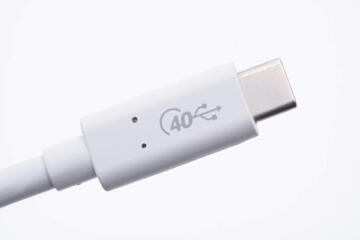
Check charging standards and cable compatibility. Many laptops use USB‑C Power Delivery, but wattage varies by charger and model. Some tablets charge slower with lower-watt adapters, which can be annoying when you rely on a single travel charger. If you travel, test whether your existing charger supports the device’s required wattage; a 20W adapter may work for light top-ups but not for full-speed charging.
Choose Accessories With Intent
Accessories often decide whether the device fits your routine. A laptop benefits from a comfortable external keyboard or a monitor for desk work, while a tablet benefits from a stylus and a keyboard only when you truly type enough to justify it. Cases and keyboard covers can add bulk, and bulk changes whether you carry the device daily.
For stylus users, check whether the stylus is included or sold separately, and confirm compatibility with your exact tablet model. For keyboard users, check whether the keyboard supports trackpad input and whether it pairs reliably after sleep. A minor annoyance like a trackpad that disconnects after waking can turn into a daily frustration, which is hard to fix later.
Case Examples
Scenario A: A graduate student reads research PDFs and writes weekly reports. They start with a tablet for annotation and reading, then switch to a laptop for report drafting because the report requires frequent paragraph edits, citations management, and exporting to a specific document format. The tablet remains useful for commuting review, but the laptop becomes the “editing workstation” because it handles multi-window research and long typing sessions with fewer input errors.
Scenario B: A remote worker attends video meetings and maintains a spreadsheet-based workflow. They choose a tablet with a keyboard because they value portability, then discover that spreadsheet navigation and cell editing take longer than expected. After testing a laptop for the same tasks, they keep the tablet for travel and use the laptop for spreadsheet-heavy days, since the laptop’s keyboard shortcuts and trackpad precision reduce time spent correcting selections.
Both scenarios show the same pattern: the device that matches the most time-consuming input task tends to reduce friction, even when the other device looks “close enough” on paper.
Comparison Checklist And Table
| Decision Factor | Laptop Tends To Fit | Tablet Tends To Fit | What To Verify |
|---|---|---|---|
| Typing And Editing | Long documents, code-like text, spreadsheets | Quick notes, short replies, reading | Test your real app with a 15–30 minute task |
| Touch And Stylus | Optional pen support on some models | Annotation, sketching, gesture navigation | Confirm stylus latency and compatibility |
| File Handling | Folder workflows, external drives | App-based documents and cloud sync | Check export formats and where files land |
| Battery In Use | Long sessions under light CPU load | Reading and media with moderate brightness | Compare screen-on time for your tasks |
| Accessory Bulk | Built-in keyboard and trackpad | Keyboard case and stylus add weight | Carry test: does it stay in your bag? |
Step-by-step checklist:
- Write down your top 3 tasks by time spent (for example: reading PDFs, typing reports, spreadsheet edits).
- For each task, note the input method you use most (keyboard, trackpad, touch, stylus).
- Open the exact app you use and test one real file for editing and export.
- Check charging: confirm the wattage your charger can deliver and whether it matches the device’s requirements.
- Decide whether you need external storage or whether cloud sync fits your workflow.
Common Mistakes That Cost Time
Buying based on screen size alone leads to mismatched expectations. A larger tablet screen can look attractive, but text entry and cursor control still depend on the input method and the app’s editing features. If your work involves frequent text selection, a laptop’s keyboard and trackpad usually reduce rework.
Another mistake involves assuming a keyboard case turns a tablet into a laptop. Keyboard cases vary widely, and many tablet apps still behave like touch-first software with limited desktop-like shortcuts. The result is slower editing and more time spent switching modes, which feels like “the device is fighting you.”
People also underestimate storage and offline access. If you rely on offline reading or offline document editing, check whether the apps cache files and how they handle sync conflicts. A tablet that depends heavily on cloud sync can work well, then fail in a low-connectivity situation where you expected offline access.
Finally, some buyers ignore update support. Security patches and app compatibility depend on the OS version and the vendor’s support timeline. A device that stops receiving updates can still run apps, but it becomes riskier for sensitive accounts and documents, especially if you store health-related information.
FAQ
Which Device Handles Documents Better?
Laptops generally handle complex document editing better because desktop office apps support more formatting controls, multi-window workflows, and easier file management. Tablets can edit many documents, but advanced layout and export behavior depends on the specific app and file type.
Do Tablets Replace Laptops For School?
Tablets work well for reading, annotation, and short writing tasks, especially with a stylus. Laptop use tends to improve outcomes when assignments require long typing, spreadsheet work, or frequent exporting to strict formats.
How Should I Compare Battery Life Claims?
Compare screen-on time under similar tasks rather than relying on marketing “up to” numbers. Video calls, bright displays, and cellular use shorten battery life more than offline reading.
What Accessories Matter Most?
For laptops, a comfortable external keyboard or a monitor helps when you work at a desk. For tablets, a compatible stylus and a keyboard only help if your apps support the editing style you need.
Which Device Is Safer For Sensitive Accounts?
Both can be safe when you use strong passwords, multi-factor authentication, and keep the OS updated. The practical difference comes from update support length and whether the device supports modern security features like secure boot and hardware-backed authentication.
Author's Insight
Device choice comes down to input and workflow fit, not screen size. Laptops typically reduce friction for long-form editing because keyboard and trackpad interactions map well to desktop software patterns. Tablets reduce friction for reading and touch-first tasks, especially when annotation and media consumption dominate.
When evidence is mixed, the most reliable method is a short test with your real files and your real apps, using the return policy window. I also pay attention to OS update support and accessory compatibility, because those factors determine whether the device stays usable after the first few weeks.
Key Takeaways
- Choose the device that matches your most time-consuming input task: keyboard editing favors laptops; touch and stylus work favors tablets.
- Test one real workflow end-to-end, including editing and export, because app behavior varies more than hardware specs.
- Battery life depends on screen brightness, connectivity, and sustained workloads, so compare screen-on time for your use.
- Keyboard cases and stylus bundles change the real weight and cost, so check compatibility and whether they solve your specific pain points.