Brightness And Contrast Trade-Off
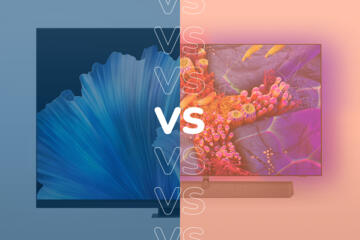
OLED and Mini-LED both aim for HDR images that look punchy in dark scenes, yet they trade brightness and contrast in different ways. OLED turns each pixel on or off, so black levels can be near-zero because the pixels that should be black stop emitting light. Mini-LED uses a backlight made of many LEDs grouped into zones, then dims or brightens those zones to mimic local contrast. That zone-based approach can produce deep blacks, but it also creates a risk of light spill around bright objects on dark backgrounds, often described as blooming.
In practice, the “best” choice depends on the mix of content and room lighting. A bright living room can push Mini-LED toward higher peak brightness, while a dim room often rewards OLED’s pixel-level contrast. HDR performance also depends on how the device maps HDR metadata to its own limits, which can change perceived brightness and highlight detail even when both displays claim similar peak numbers.
Common Misunderstandings
People often compare OLED and Mini-LED using peak brightness claims without checking the measurement conditions. Peak brightness is usually measured on a small window with a short duration, and the display may reduce brightness as the window grows or as time passes. That means a spec that looks impressive on paper can translate into a smaller real-world advantage during full-screen content.
Another frequent mistake is assuming “contrast” means the same thing across technologies. OLED contrast is dominated by pixel emissivity, so black stays black regardless of what the rest of the screen is doing. Mini-LED contrast depends on how many zones exist, how they are controlled, and how aggressively the backlight dims near dark regions. If a scene has small bright highlights on a dark field, zone boundaries can show halos, and the effect becomes more noticeable when zones are fewer or dimming is less precise.
Supporting technologies also matter. HDR tone mapping, local dimming algorithms, and the panel’s ability to sustain brightness over time all affect what you see. Even the content mastering level matters: a highlight that was graded to be extremely bright may clip on a display with limited sustained output, while another display might preserve highlight detail by compressing the tone curve. I’ve seen this in firmware notes where a “HDR behavior” update changes how highlights roll off; the change can be subtle, but it shifts perceived contrast.
How To Choose For Your Use
Test For Sustained Brightness
Use a repeatable test rather than a single bright screen. In-store, look for a short clip with both bright and dark areas, then watch how the bright parts behave as the clip continues. Many displays reduce brightness after a few seconds to manage heat and power; OLED often limits sustained brightness differently than Mini-LED, which can keep more output in larger windows but may still throttle depending on its thermal design. If you have access to a settings menu, check for “HDR tone mapping” modes and note whether the display offers a “dynamic” option that changes behavior frame-to-frame.
As a practical aside, I’ve used a simple workflow with a phone stopwatch: start a 10–20 second HDR scene and watch whether the highlights fade. It’s not a lab measurement, but it catches the common “peak then drop” pattern that marketing screenshots hide.
Check Blooming And Halos
Mini-LED’s local dimming can create halos when bright objects sit near dark backgrounds. To evaluate this, use scenes with subtitles or thin UI text over dark menus, then look for a glow around bright edges. If the display has a “local dimming” control, try both a higher and lower setting; higher settings can reduce blooming but may increase flicker-like artifacts or reduce overall brightness in some scenes. OLED avoids blooming in the same way because it doesn’t rely on a shared backlight, though it can show other artifacts like dimming of bright content due to power limits.
For OLED, watch for how the display handles large bright areas. Some OLED sets reduce brightness to protect the panel, which can make a full-screen white scene look less bright than a small highlight scene. That behavior can feel like “contrast loss,” even though the black level stays stable.
Match HDR Tone Mapping To Content
HDR tone mapping decides how the display converts HDR signals into its own luminance range. Two displays with similar peak brightness can look different because one may preserve highlight detail by compressing midtones, while another may boost perceived brightness at the cost of clipping. If you stream the same HDR title on both devices, compare how skin tones and shadow detail behave in dark scenes with bright accents. A useful method is to pause on a frame where a bright highlight sits near a dark area, then compare whether the highlight retains texture or turns into a flat blob.
Firmware matters here. Some manufacturers publish changelogs for HDR processing; for example, a “vX.Y HDR” update on a TV can adjust tone mapping curves. If you’re comparing models, check whether the devices are on comparable firmware versions, because the same hardware can behave differently after updates.
Use The Right Settings And Test Patterns
Start with a known picture mode and disable extra processing that changes contrast behavior. Look for options like “dynamic contrast,” “enhanced contrast,” or aggressive “motion” processing that can alter perceived blacks and highlights. Then test with a mix of content: dark room movies, bright sports scenes, and UI-heavy menus. For monitors, test with a desktop background and a window that has small bright elements on dark areas, since that’s where blooming and edge glow show up quickly.
If the device offers a calibration mode, use it only if you understand what it changes. Calibration can improve accuracy, but it may also change how HDR is handled, and it can make comparisons across devices less apples-to-apples.
Educational Case Examples
A buyer watches a dark sci-fi scene in a bright showroom. The OLED looks striking on black levels, but the buyer notices that large bright clouds and star fields lose some punch after a few seconds. The Mini-LED looks slightly less “inky” in the deepest blacks, yet the bright highlights remain more consistent during the clip. The buyer’s conclusion matches the room: the Mini-LED’s higher sustained output helps in ambient light, while OLED’s contrast advantage is easier to appreciate in a dim room.
Another buyer uses a desktop monitor for coding and reading. They notice that when a bright cursor or window highlight appears on a dark background, a faint glow forms around the edges on the Mini-LED unit. On the OLED unit, the glow is absent, but the buyer sees that very bright full-screen content triggers a brightness reduction over time. The buyer chooses OLED for UI-heavy work, then limits prolonged full-white pages to avoid the sustained brightness behavior.
Comparison Checklist
| What To Check | OLED Tends To Do | Mini-LED Tends To Do | How To Test Quickly |
|---|---|---|---|
| Black level | Near-black because pixels turn off | Deep blacks, limited by zone dimming | Pause dark scenes with bright accents |
| Blooming/halos | Minimal blooming from backlight spill | Possible halos around bright edges | Use subtitles on dark menus |
| Peak brightness | High for small highlights; may throttle | Often higher sustained output in HDR | Watch a 10–20 second HDR clip |
| HDR tone mapping | Can compress highlights to protect output | Can preserve highlights but may shift midtones | Compare paused frames for shadow detail |
If you want a step-by-step checklist, use this order: (1) set a consistent picture mode, (2) test dark scenes for halos, (3) test bright scenes for sustained highlight behavior, (4) compare HDR paused frames for shadow texture, and (5) repeat with a second content type so you don’t overfit to one demo clip.
Practical Common Mistakes
Buying based on a single spec number leads to disappointment because peak brightness and contrast depend on window size, duration, and processing. A “1% window peak” can look great in a lab chart while real scenes with large bright areas trigger different behavior. If a listing only quotes peak brightness without describing measurement conditions, treat it as a rough indicator.
Another mistake is leaving dynamic contrast or “enhanced” processing enabled. Those modes can change black level handling and local dimming behavior, which makes it harder to compare OLED and Mini-LED fairly. It also complicates troubleshooting if you later notice crushed shadows or washed highlights.
People also ignore viewing conditions. Ambient light reduces perceived contrast for both technologies, but it affects OLED’s advantage more than many buyers expect because OLED’s black level advantage depends on the room staying dark enough for the eye to notice differences. If you watch with lamps on, prioritize sustained brightness behavior and halo control over pure black level claims.
Finally, buyers sometimes compare displays using different content sources. Streaming apps can apply different HDR formats, and some devices switch tone mapping modes when the input changes. If you can, compare using the same source type and similar HDR settings, even if you can’t match every variable.
FAQ
Which Looks Better In Dark Rooms?
OLED often shows stronger perceived contrast in dim rooms because pixels can turn off for near-black. Mini-LED can still look excellent, but zone dimming can introduce light spill around bright elements on dark backgrounds.
Does Mini-LED Always Get Blooming?
Blooming risk exists because Mini-LED dims by zones rather than per pixel. The visibility depends on zone count, dimming algorithm behavior, and the content’s pattern size, so some scenes show it more than others.
Can OLED Match Mini-LED Peak Brightness?
OLED can reach high peak brightness for small highlights, but sustained brightness across larger bright areas may be limited by power and thermal constraints. Mini-LED often maintains higher brightness over larger windows in HDR.
What HDR Settings Should I Compare?
Compare with the same HDR mode and disable extra contrast processing that changes black handling. Then test paused frames in dark scenes and short HDR clips for highlight consistency over time.
Are Specs Like “Nits” Enough To Decide?
Nits help, but they don’t describe window size, duration, or tone mapping. Two displays with similar peak-nit claims can look different because their processing and sustained output behavior differ.
Author's Insight
OLED and Mini-LED differ at the level of how light is generated and controlled: OLED modulates light per pixel, while Mini-LED modulates light in zones. That single design choice drives most of the visible trade-offs you notice—near-black stability versus blooming risk, and sustained brightness behavior versus power-limited brightness roll-off. When buyers compare, the most reliable approach is to test the same content patterns that stress local contrast: subtitles on dark menus, bright highlights near shadows, and short HDR clips that reveal brightness throttling. Firmware and picture-mode processing can shift results, so comparisons work best when settings and HDR behavior are kept consistent.
Key Takeaways
- OLED usually wins on black stability and avoids backlight blooming, while Mini-LED can deliver stronger sustained HDR brightness.
- Blooming and halos depend on zone control and content patterns, so test subtitles and thin bright edges on dark backgrounds.
- Peak brightness specs alone don’t predict real scenes; watch how highlights behave over 10–20 seconds.
- HDR tone mapping and picture-mode processing can change perceived contrast, so compare with consistent settings and the same content source.